SwiftUI TextField Placeholders and Keyboard Types
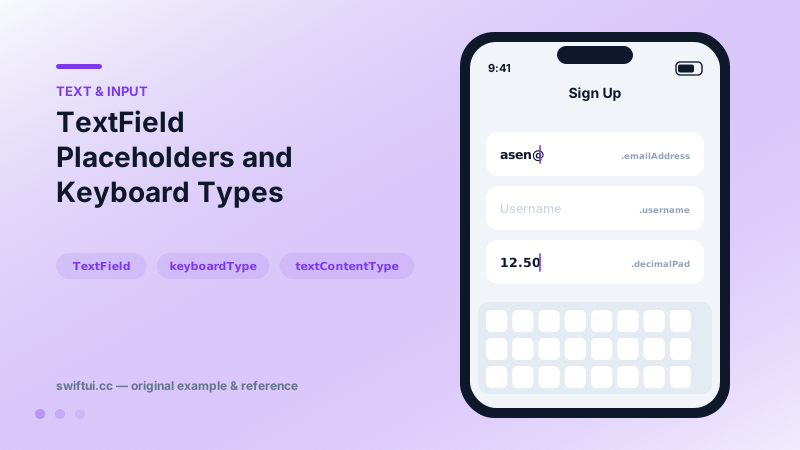
TextField binds editable text with a placeholder label, keyboardType for input-appropriate keys, textContentType for autofill, and capitalization and autocorrection control.
import SwiftUI

struct SignupFields: View {
    @State private var email = ""
    @State private var username = ""
    @State private var amount = ""

    var body: some View {
        Form {
            TextField("Email", text: $email)
                .keyboardType(.emailAddress)
                .textContentType(.emailAddress)
                .textInputAutocapitalization(.never)
                .autocorrectionDisabled()

            TextField("Username", text: $username)
                .textContentType(.username)
                .textInputAutocapitalization(.never)

            TextField("Amount", text: $amount)
                .keyboardType(.decimalPad)
        }
    }
}
Configure for the data, not the default
A bare TextField gives a QWERTY keyboard with sentence capitalization and autocorrect — wrong for emails, usernames, codes, and amounts. Four modifiers fix the experience:
TextField("Email", text: $email)
    .keyboardType(.emailAddress)          // @ and . keys present
    .textContentType(.emailAddress)       // autofill suggestions
    .textInputAutocapitalization(.never)  // emails are lowercase
    .autocorrectionDisabled()             // no 'correcting' addresses
Autofill is textContentType
textContentType is invisible until you watch users: .emailAddress offers their email above the keyboard, .oneTimeCode lifts SMS codes, .newPassword triggers strong-password suggestions, name/address types fill from Contacts. It is the highest-leverage modifier on any form field.
Keyboard types worth memorizing
.emailAddress, .URL, .numberPad, .decimalPad, .phonePad, .asciiCapable. Pads lack a return key — pair them with a .keyboard toolbar Done button or onTapGesture dismissal.
Styling
textFieldStyle(.roundedBorder) gives the classic boxed field outside Forms; .plain plus your own padding/background builds custom designs. In Forms the plain style integrates with rows.
Common mistakes
- Letting autocorrect mangle usernames and codes.
- Number pads with no way to dismiss.
- Placeholder-only labeling that vanishes when users need it mid-typing.
Related reference
@FocusState moves the cursor programmatically, onSubmit chains fields through return, and onChange validates as users type — the wiring of real forms.
SecureField masks input for secrets, pairs with textContentType for password managers and strong-password suggestions, and composes with TextField for reveal toggles.
TextEditor binds long-form scrolling text. Style with font and lineSpacing, restyle backgrounds via scrollContentBackground, and manage the keyboard with focus and toolbars.