SwiftUI ContentUnavailableView Empty States
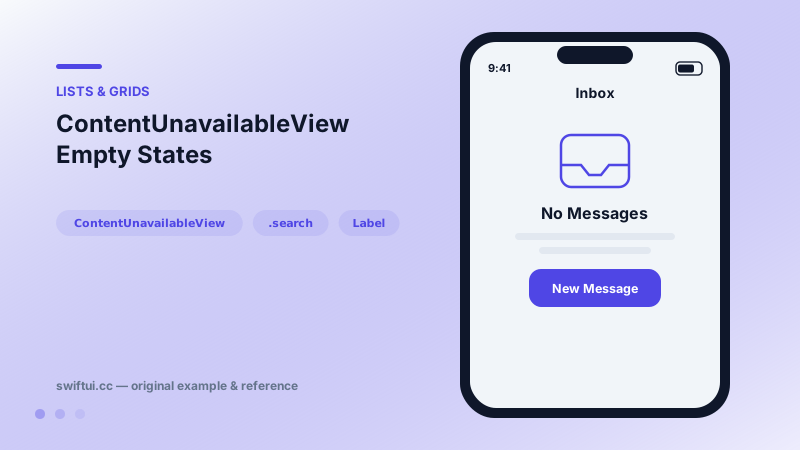
ContentUnavailableView standardizes empty, error, and no-results screens with an icon, title, description, and action buttons — including the built-in search variant.
import SwiftUI

struct EmptyInbox: View {
    var body: some View {
        ContentUnavailableView {
            Label("No Messages", systemImage: "tray")
        } description: {
            Text("Conversations you start will appear here.")
        } actions: {
            Button("New Message") { }
                .buttonStyle(.borderedProminent)
        }
    }
}
A system vocabulary for nothing
Empty states used to be ad-hoc VStacks that drifted apart across screens. ContentUnavailableView fixes the anatomy — icon, title, description, actions — and matches the platform's spacing and typography, including Dynamic Type behavior.
ContentUnavailableView(
    "No Favorites",
    systemImage: "heart",
    description: Text("Tap the heart on any item to save it here.")
)
The search special case
Zero search results are so common they ship built in:
if filtered.isEmpty {
    ContentUnavailableView.search(text: query)
}
It renders the magnifier icon and a localized "No Results for …" message, so every app's search failure reads the same way.
Placement pattern
Swap it in where the content would be: if items.isEmpty { ContentUnavailableView(…) } else { List(items) { … } }. Inside a NavigationStack this keeps titles and toolbars stable while the body switches.
Common mistakes
- Showing it during the initial load, flashing "empty" before data arrives.
- Burying the recovery action in a toolbar instead of the actions slot.
- Custom art that ignores Dynamic Type while the surrounding text scales.
Related reference
searchable adds the platform search field, you own the filtering. Add searchSuggestions with searchCompletion, surface no-results states, and dismiss with the environment action.
List renders platform-native rows from data. ForEach adds onDelete and onMove editing, and a selection binding turns rows tappable with single or multi-select.
ProgressView spins while waiting and fills while completing. Set value and total for determinate progress, label the current state, and tint or restyle as needed.