SwiftUI NavigationStack Titles and Bar Customization
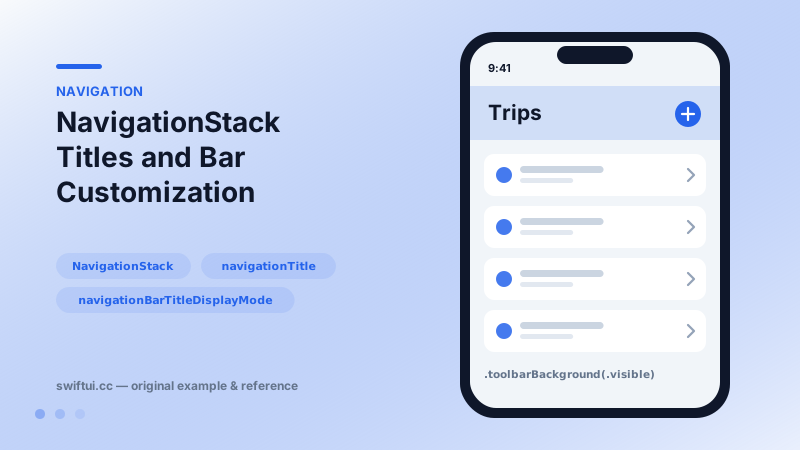
NavigationStack hosts push navigation. Configure titles and display modes, place bar items with toolbar, and control bar background and visibility with toolbarBackground.
import SwiftUI

struct TripsScreen: View {
    var body: some View {
        NavigationStack {
            List(1...10, id: \.self) { n in
                NavigationLink("Trip \(n)", value: n)
            }
            .navigationDestination(for: Int.self) { n in
                Text("Trip \(n) details")
            }
            .navigationTitle("Trips")
            .navigationBarTitleDisplayMode(.large)
            .toolbar {
                ToolbarItem(placement: .topBarTrailing) {
                    Button("Add", systemImage: "plus") { }
                }
            }
            .toolbarBackground(.teal.opacity(0.2), for: .navigationBar)
            .toolbarBackground(.visible, for: .navigationBar)
        }
    }
}
Titles belong to screens
NavigationStack is the container, but every pushed view declares its own navigationTitle. Display modes: .large for browsing roots, .inline for dense detail screens — .large collapses to inline automatically as the user scrolls.
Toolbar placements
toolbar { } positions items semantically: .topBarLeading, .topBarTrailing, .principal (center), .bottomBar, and .confirmationAction/.cancellationAction inside sheets. Semantic placements let the system adapt across platforms.
.toolbar {
    ToolbarItem(placement: .principal) { Logo() }
    ToolbarItemGroup(placement: .bottomBar) {
        Button("Filter", systemImage: "line.3.horizontal.decrease") {}
        Spacer()
        Button("Sort", systemImage: "arrow.up.arrow.down") {}
    }
}
Bar appearance
toolbarBackground(_:for:) sets a color, gradient, or material; pair it with toolbarBackground(.visible, for: .navigationBar) so it shows even before content scrolls underneath. toolbar(.hidden, for: .navigationBar) removes the bar for immersive screens, and toolbarColorScheme(.dark, for: .navigationBar) flips title color over dark brand backgrounds.
Back button control
navigationBarBackButtonHidden(true) suppresses the chevron — used for confirmation gates and custom back designs. Re-create the affordance with a .topBarLeading item and remember the edge-swipe gesture follows the system button's presence.
Common mistakes
- Titling the NavigationStack instead of the screens inside it.
- Setting toolbarBackground without .visible and concluding it does not work.
- Nesting NavigationStacks accidentally, producing double bars.
Related reference
Value-based NavigationLink separates what was tapped from where it goes: links carry values, and navigationDestination(for:) maps each value type to a screen.
Bind a path to NavigationStack and navigation history becomes data: append to push, removeLast to pop, clear to return to root, mix types with NavigationPath.
Place primary and secondary commands in toolbars with predictable placement, grouping, tinting, and keyboard-aware behavior.