SwiftUI TabView Page Style and Index Indicators
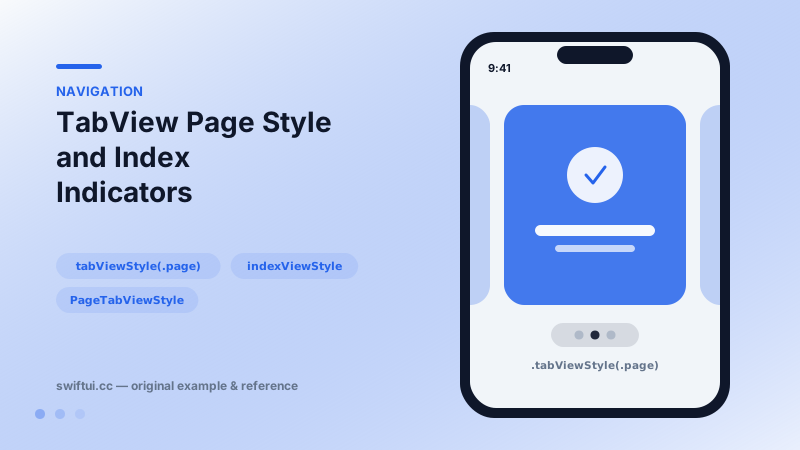
tabViewStyle(.page) turns TabView into a swipeable pager — onboarding carousels and image galleries — with index dots controlled by indexViewStyle and display mode.
import SwiftUI

struct Onboarding: View {
    @State private var page = 0

    var body: some View {
        TabView(selection: $page) {
            ForEach(0..<3, id: \.self) { index in
                VStack(spacing: 12) {
                    Image(systemName: ["sparkles", "bolt", "checkmark.seal"][index])
                        .font(.system(size: 56))
                    Text("Feature \(index + 1)")
                        .font(.title2.bold())
                }
                .frame(maxWidth: .infinity, maxHeight: .infinity)
                .tag(index)
            }
        }
        .tabViewStyle(.page(indexDisplayMode: .always))
        .indexViewStyle(.page(backgroundDisplayMode: .always))
        .background(.indigo.opacity(0.15))
    }
}
One modifier, different widget
tabViewStyle(.page) keeps TabView's API — children, tags, selection — but swaps the bar for horizontal swiping with dot indicators. Onboarding flows get the standard UIKit page-control look in a line.
Indicator control
Two independent dials:
.tabViewStyle(.page(indexDisplayMode: .always))          // dots: always/automatic/never
.indexViewStyle(.page(backgroundDisplayMode: .always))   // capsule behind dots
Set indexDisplayMode: .never and bind selection to draw your own indicator — a progress bar, numbered chip, or animated dots.
Pager + buttons
The selection binding makes Next buttons one-liners: withAnimation { page += 1 }. Combine with a conditional Get Started button on the final page.
When ScrollView is the better pager
For dozens of pages or data-driven feeds, ScrollView(.horizontal) with scrollTargetBehavior(.paging) builds pages lazily and integrates scrollPosition tracking. Page-style TabView builds its children eagerly, which is fine for a handful of onboarding screens but heavy for galleries of remote images.
Common mistakes
- Invisible white dots on white pages — set the background display mode.
- Forgetting tags, so the Next button cannot drive the pager.
- Using page style for long feeds and paying eager-construction cost.
Related reference
Define tabs with the Tab builder, switch programmatically through a selection binding, badge tab items, and adopt tabViewBottomAccessory plus tabBarMinimizeBehavior.
Modern ScrollView is configured declaratively: scrollTargetBehavior for paging and snapping, scrollPosition for tracking, contentMargins for insets, plus bounce and disable controls.
containerRelativeFrame sizes a view as a fraction of its nearest container — full width, one-of-three columns, or custom math — without GeometryReader.